


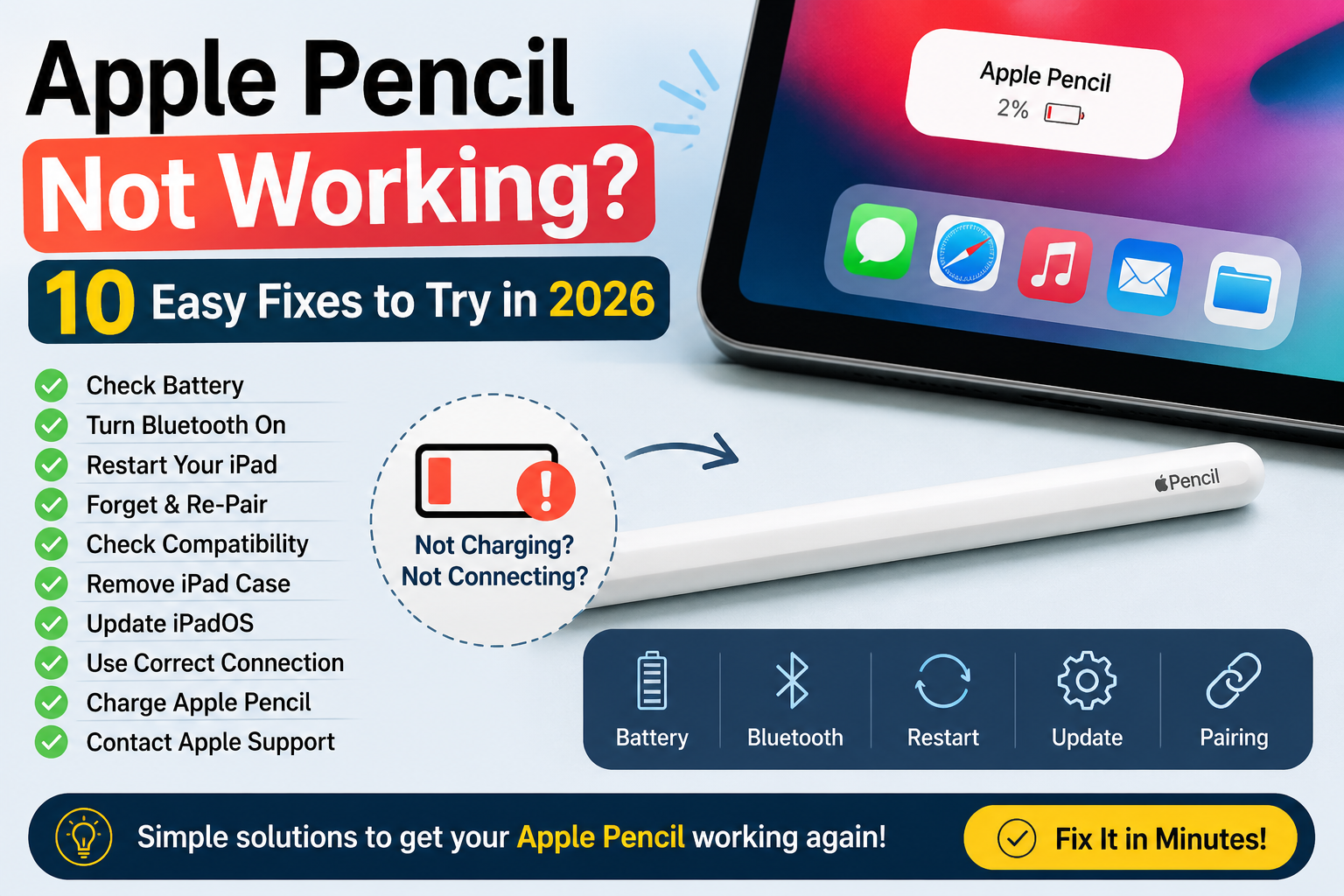
Is your Apple Pencil not working with your iPad? Don’t worry. In many cases, the problem can be fixed in just a few minutes.
Your Apple Pencil might stop working because it has a low battery, Bluetooth is turned off, it isn’t paired correctly, your iPad isn’t compatible with the Pencil, or a software issue is preventing the connection.
In this guide, we’ll show you 10 easy ways to fix an Apple Pencil that isn’t working, including pairing, charging, Bluetooth, restarting your iPad, checking compatibility and more.
For more useful technology guides, tips and troubleshooting articles, visit G9Forty.com.
Why Is My Apple Pencil Not Working?
Before trying complicated solutions, check the basics.
Common reasons an Apple Pencil may not work include:
- The Apple Pencil battery is completely drained
- Bluetooth is turned off
- The Pencil isn’t paired with your iPad
- Your Apple Pencil model isn’t compatible with your iPad
- The Pencil needs to be charged
- Your iPad needs to be restarted
- An iPad case is interfering with magnetic charging
- Your iPad software needs an update
- The Pencil has previously been paired with another iPad
- The Apple Pencil or iPad may need service
Apple recommends checking compatibility, updating the iPad software and charging the Apple Pencil before troubleshooting pairing problems.
1. Check Your Apple Pencil Battery
One of the simplest reasons your Apple Pencil isn’t working is that the battery is too low.
If the Pencil has been unused for a long time, it may need to charge before your iPad can recognize it.
You can check the battery level from the Batteries widget or go to:
Settings → Apple Pencil
Depending on your Apple Pencil model, connect it to the iPad or use the appropriate charging cable.
For Apple Pencil (2nd generation), attach it to the magnetic connector on the side of a compatible iPad. Apple says the Pencil can pair and charge while attached to that connector.
For Apple Pencil (USB-C), connect the Pencil to the iPad using a USB-C cable and follow the connection prompt if it appears.
Quick tip
If the battery is completely empty, give it some time to charge before trying to pair it again.
2. Turn Bluetooth Off and On
Apple Pencil uses Bluetooth to communicate with your iPad.
If Bluetooth isn’t working correctly, your Pencil may not connect.
Go to:
Settings → Bluetooth
Make sure Bluetooth is turned On.
If it is already on, turn it off, wait a few seconds and turn it back on.
Then connect your Apple Pencil again.
Apple specifically recommends checking that Bluetooth is enabled when troubleshooting Apple Pencil pairing problems.
3. Restart Your iPad
A simple restart can solve temporary software and Bluetooth problems.
First, disconnect or remove your Apple Pencil.
Then restart your iPad.
After the iPad turns back on, reconnect your Apple Pencil.
For Apple Pencil models that connect magnetically, place the Pencil back on the magnetic connector.
For Apple Pencil (1st generation), connect it to the appropriate Lightning connector or USB-C adapter, depending on your iPad.
Apple recommends keeping the Pencil connected while restarting the iPad when troubleshooting pairing problems.
4. Forget and Re-Pair Your Apple Pencil
If your iPad recognizes the Pencil but it won’t work, removing the existing Bluetooth pairing can help.
Go to:
Settings → Bluetooth
Find Apple Pencil under your devices.
Tap the information button next to it and choose:
Forget This Device
Then reconnect your Apple Pencil.
When the pairing prompt appears, tap Pair.
Apple recommends this procedure when an Apple Pencil won’t pair correctly.
5. Make Sure Your Apple Pencil Is Compatible
This is an important step, especially if you’ve recently bought a new iPad.
Not every Apple Pencil works with every iPad.
For example, Apple currently lists the following compatibility:
Apple Pencil Pro
Compatible with selected newer iPad Pro, iPad Air and iPad mini models, including iPad Pro models with M4 or M5, compatible iPad Air models and iPad mini with A17 Pro.
Apple Pencil (USB-C)
Compatible with a range of iPad Pro, iPad Air, iPad and iPad mini models.
Apple Pencil (2nd generation)
Compatible with selected iPad mini, iPad Air and iPad Pro models.
Apple Pencil (1st generation)
Compatible with several older iPad models, including certain iPad mini, iPad, iPad Air and iPad Pro models. Some newer USB-C iPads require the appropriate USB-C to Apple Pencil Adapter.
If you’re unsure which Pencil you own, check Apple’s compatibility information before assuming the Pencil is defective.
6. Remove Your iPad Case
If you use an Apple Pencil that charges magnetically, your iPad case could interfere with the connection.
This is particularly worth checking if:
- Your Pencil doesn’t charge
- Your iPad doesn’t recognize the Pencil
- The Pencil connects and disconnects
- You recently installed a new case
Remove the case and attach the Apple Pencil directly to the iPad’s magnetic connector.
Apple specifically recommends removing cases or covers when certain Apple Pencil models won’t pair.
7. Update Your iPad
An outdated version of iPadOS can sometimes cause compatibility or connection problems.
Open:
Settings → General → Software Update
If an update is available, install it.
After updating, restart your iPad and try connecting the Apple Pencil again.
Apple recommends updating the iPad to the latest software before troubleshooting Apple Pencil pairing problems.
8. Check the Apple Pencil Connection
The correct connection method depends on which Apple Pencil you have.
Apple Pencil Pro
Attach it to the magnetic connector on the compatible iPad.
Apple Pencil 2nd generation
Attach it to the magnetic connector on the compatible iPad.
Apple Pencil USB-C
Open the sliding end of the Pencil and connect it using a USB-C cable. Then follow the connection prompt on the iPad.
Apple Pencil 1st generation
Depending on your iPad, it can connect through a Lightning connector or through a USB-C to Apple Pencil Adapter.
Using the wrong connection method can make it appear as though the Pencil isn’t working.
9. Try Charging It Again
If your Apple Pencil has been sitting unused for a long time, the battery may be deeply discharged.
Connect it using the correct charging method for your model and leave it connected for a while.
Then check:
Settings → Apple Pencil
or the iPad’s Batteries widget.
If the Pencil eventually appears and begins charging, wait until it has enough battery before testing it again.
If there is still no sign of charging or pairing after following Apple’s troubleshooting steps, the Pencil may require service.
10. Check Whether the Problem Is Hardware
If you’ve tried all the solutions above and your Apple Pencil still doesn’t work, there could be a hardware problem.
Possible signs include:
- The Pencil never appears on the iPad
- It won’t charge
- It repeatedly disconnects
- The tip is damaged
- The Pencil has been physically damaged
- The Pencil won’t pair with a compatible iPad
At this point, Apple recommends getting service if the pairing problem remains after troubleshooting.
Apple Pencil Not Working: Quick Checklist
Before contacting support, go through this checklist:
☐ Check the Apple Pencil battery
☐ Turn Bluetooth on
☐ Restart your iPad
☐ Forget and reconnect Apple Pencil
☐ Check Apple Pencil compatibility
☐ Remove your iPad case
☐ Update iPadOS
☐ Use the correct charging method
☐ Try charging the Pencil again
☐ Contact Apple Support if nothing works
Apple Pencil Still Not Working?
If you’ve followed all 10 steps and your Apple Pencil is still not working, don’t immediately buy a replacement.
First, make sure you have the correct Pencil for your iPad and that you’re using the correct charging and pairing method.
Apple’s current troubleshooting guidance says that if the Pencil still won’t pair after the recommended steps, service may be required.
You can also explore more technology troubleshooting guides and useful tips on G9Forty.com.
Frequently Asked Questions
Why is my Apple Pencil not connecting?
Your Apple Pencil may not connect because the battery is low, Bluetooth is disabled, the Pencil isn’t paired correctly, or the Pencil isn’t compatible with your iPad.
How do I reconnect my Apple Pencil?
Turn on Bluetooth, connect or attach your Apple Pencil using the correct method for your model, and wait for the pairing prompt. If it was previously paired, you may need to forget the device and pair it again.
Why isn’t my Apple Pencil charging?
Check that you’re using the correct charging method and that the Pencil is properly connected. If you use a magnetic model, remove your iPad case and make sure the Pencil is correctly positioned on the magnetic connector.
Does every Apple Pencil work with every iPad?
No. Apple Pencil compatibility depends on the specific Pencil and iPad models. Check the compatibility list before purchasing or troubleshooting.
What should I do if my Apple Pencil still doesn’t work?
If charging, Bluetooth, pairing, compatibility checks and restarting don’t solve the problem, Apple recommends seeking service.
Final Thoughts
When your Apple Pencil is not working, the problem is often something simple such as a low battery, Bluetooth connection or pairing issue.
Start with the easiest solutions: charge the Pencil, check Bluetooth, restart your iPad and reconnect the Pencil.
If those steps don’t work, check compatibility and remove your iPad case. Finally, make sure your iPad software is up to date.
These simple checks can solve many Apple Pencil connection problems without immediately needing a replacement.
For more Apple tips, smartphone guides, technology news and useful how-to articles, visit G9Forty.com.
Related G9Forty Guides: