


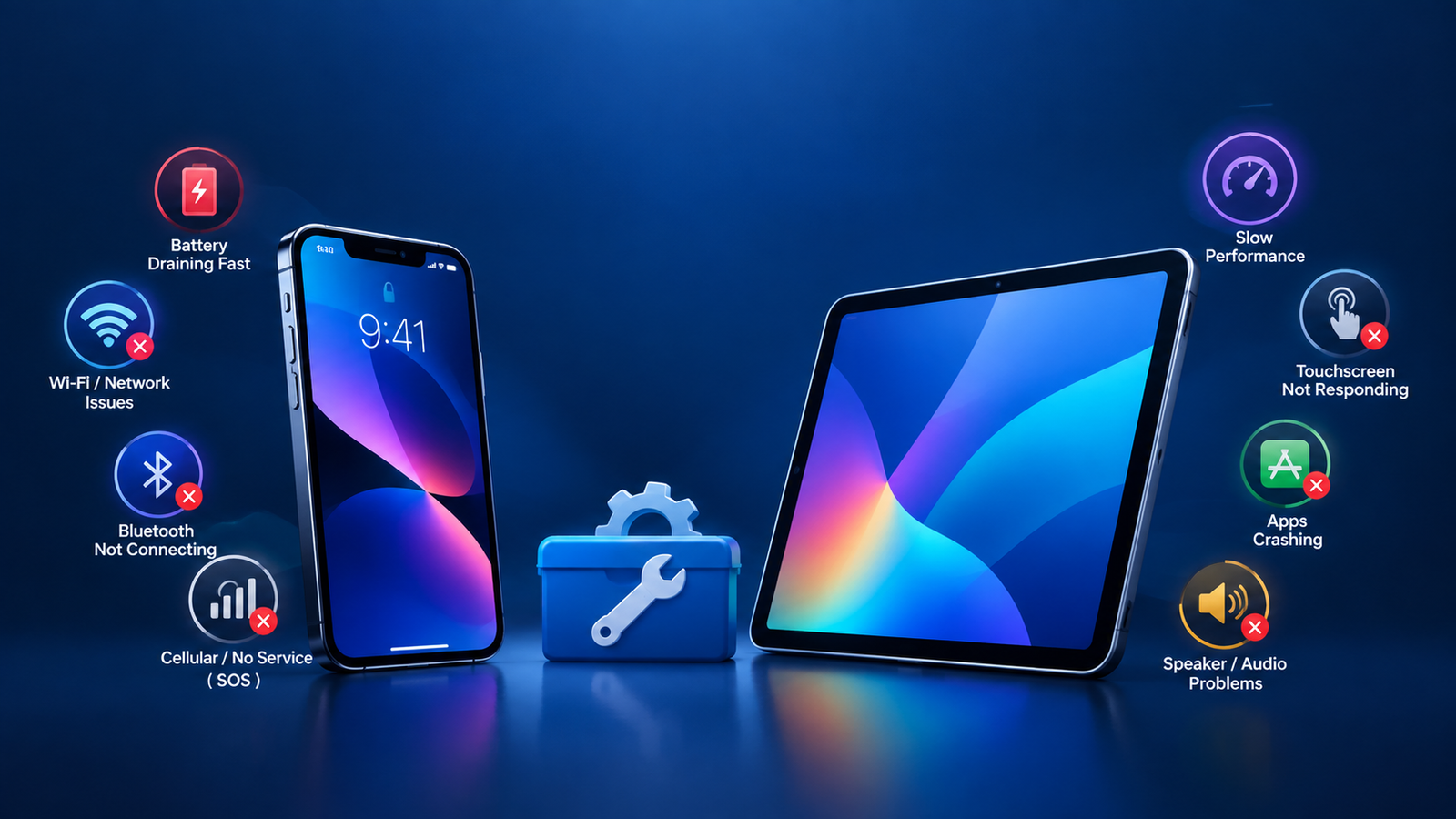
Are you dealing with an iPad battery draining fast, an iPhone that won’t connect to Wi-Fi, or a touchscreen that suddenly stops responding?
You’re not alone. iPhones and iPads can occasionally develop frustrating software, connection, battery or hardware problems. Fortunately, many common issues can be fixed at home with a few simple troubleshooting steps.
In this guide, we’ll cover 8 common iPhone and iPad problems and explain what you can try before contacting Apple Support or taking your device for repair.
Whether your iPad touchscreen is not responding, your iPhone Bluetooth isn’t connecting, or your iPhone hotspot isn’t working, these practical solutions can help.
Quick tip: Before trying advanced troubleshooting, make sure your device has enough battery power and, when possible, back up important information.
1. iPad Battery Draining Fast
One of the most common iPad complaints is fast battery drain.
If your iPad battery suddenly starts disappearing much faster than usual, several things could be responsible. High screen brightness, background activity, demanding apps, poor Wi-Fi or cellular conditions, and an aging battery can all affect battery life.
Check which apps are using your battery
Open:
Settings → Battery
Review the battery usage information to see which apps are consuming the most power.
If one app is using an unusually large amount of battery, try updating it or temporarily removing it to see whether battery life improves.
Lower screen brightness
Your display can consume a significant amount of power.
Try reducing the brightness or enabling automatic brightness if appropriate.
You can also reduce the amount of time before the display turns off by checking the Auto-Lock setting.
Update your iPad
Software updates can include bug fixes and improvements that may help with unexpected battery behavior.
Go to:
Settings → General → Software Update
Install an available update if your iPad supports it.
Restart your iPad
A simple restart can sometimes resolve temporary background processes or software glitches that are affecting battery life.
If your iPad battery continues draining unusually quickly after these steps, the battery itself may have degraded and could require professional service.
2. iPad Touchscreen Not Responding
A non-responsive iPad touchscreen can be especially frustrating because it can prevent you from opening apps or changing settings.
Before assuming the screen is damaged, try these solutions.
Clean the screen
Dirt, moisture or other debris can sometimes interfere with touchscreen operation.
Use a soft, lint-free cloth to gently clean the display.
Avoid using excessive liquid directly on the screen.
Remove the screen protector or case temporarily
If you’ve recently installed a screen protector or case, remove it temporarily and test the touchscreen again.
A poorly fitted accessory can sometimes affect touch interaction.
Restart the iPad
If the screen responds enough to access the shutdown controls, restart the device normally.
If the touchscreen is completely frozen, you may need to perform a force restart using the button combination appropriate for your particular iPad model.
Check for physical damage
If the iPad was dropped, exposed to liquid or has a cracked display, the problem could be hardware-related.
In that situation, software troubleshooting may not solve the problem.
3. iPhone Wi-Fi Not Working
Is your iPhone Wi-Fi not working?
The problem could be with the iPhone, the Wi-Fi network, the router or your internet connection.
Start with the simplest solutions.
Turn Wi-Fi off and on
Open:
Settings → Wi-Fi
Turn Wi-Fi off, wait a few seconds and turn it back on.
Select your network and check whether the iPhone reconnects.
Restart your iPhone
Restarting the phone can resolve temporary connection problems.
After restarting, reconnect to your Wi-Fi network.
Forget the Wi-Fi network
If your iPhone connects but repeatedly disconnects, try forgetting the network.
Go to:
Settings → Wi-Fi
Tap the information button beside your network and select the option to forget the network.
Then reconnect and enter the Wi-Fi password again.
Restart your router
If other devices are also unable to access the internet, the problem may be your router or internet service rather than the iPhone.
Restart your router and wait for the connection to become available again.
Reset network settings
If nothing else works, you can consider resetting network settings.
Keep in mind that this removes saved Wi-Fi networks and passwords along with other network-related settings, so make sure you know your important Wi-Fi passwords before doing this.
4. iPhone Bluetooth Not Connecting
Having trouble because your iPhone Bluetooth isn’t connecting to headphones, a car, speaker or another accessory?
Try these steps.
Make sure Bluetooth is enabled
Go to:
Settings → Bluetooth
Make sure Bluetooth is switched on.
Move the devices closer together
Bluetooth devices generally work best when they’re within the recommended range.
Move your iPhone closer to the accessory and try connecting again.
Check whether the accessory is already connected elsewhere
Some Bluetooth accessories automatically connect to another nearby device.
If your headphones or speaker are connected to another phone, tablet or computer, disconnect them there before trying again.
Forget and reconnect the device
Go to:
Settings → Bluetooth
Select the connected accessory and choose the option to forget the device.
Put the accessory back into pairing mode and try connecting again.
Restart both devices
Restart your iPhone and the Bluetooth accessory.
Then attempt the pairing process again.
5. iPhone Microphone Not Working
If your iPhone microphone isn’t working, calls, voice recordings, videos or voice messages may contain little or no sound.
There are several things worth checking.
Check the microphone openings
Dust or debris can accumulate around the microphone openings.
Inspect them carefully and keep them clean.
Avoid inserting sharp objects into the openings.
Test the microphone with different apps
Try recording a short voice memo.
Then make a phone call or record a video and check the audio.
If the microphone works in one app but not another, the issue could be related to that particular app or its permissions.
Check microphone permissions
An app may need permission to access your microphone.
Open:
Settings → Privacy & Security → Microphone
Check whether the affected app has microphone access enabled.
Remove accessories
Temporarily remove cases or other accessories that might be blocking microphone openings.
If the microphone still doesn’t work across multiple apps, the device may have a hardware problem.
6. iPhone Camera Not Working
A camera that won’t open or produces a black screen can be caused by a temporary software problem, an app issue or hardware damage.
If your iPhone camera isn’t working, start with these steps.
Close and reopen the Camera app
Exit the Camera app and open it again.
If the app has become stuck, this may resolve the problem.
Restart your iPhone
A restart can clear temporary software problems affecting the camera.
Check available storage
If your iPhone is almost completely full, you may experience problems with taking or saving photos and videos.
Go to:
Settings → General → iPhone Storage
Check how much free space remains.
If necessary, remove unwanted photos, videos or apps after making sure important files are backed up.
Remove the case or accessories
Some camera accessories or poorly fitted cases can interfere with the camera.
Remove them temporarily and test the camera.
Check for physical damage
If the camera stopped working after a drop, impact or liquid exposure, the issue may be hardware-related.
7. iPhone Keyboard Not Working
Is your iPhone keyboard not working when you’re trying to send a message, search the web or enter information?
First, determine whether the problem happens in one app or everywhere.
Restart your iPhone
A simple restart can fix temporary keyboard problems.
Check available storage
Very low storage can contribute to performance problems.
Check:
Settings → General → iPhone Storage
Free up space if your device is nearly full.
Check keyboard settings
Go to:
Settings → General → Keyboard
Review your installed keyboards and settings.
If you recently added a third-party keyboard, temporarily switch back to Apple’s default keyboard and test it.
Update iOS
Check:
Settings → General → Software Update
Installing an available update may resolve software-related keyboard problems.
If the keyboard is lagging
Close unnecessary apps, restart your iPhone and check whether the problem continues.
If the keyboard works normally in some apps but not others, the issue may be specific to the affected application.
RELATED: