


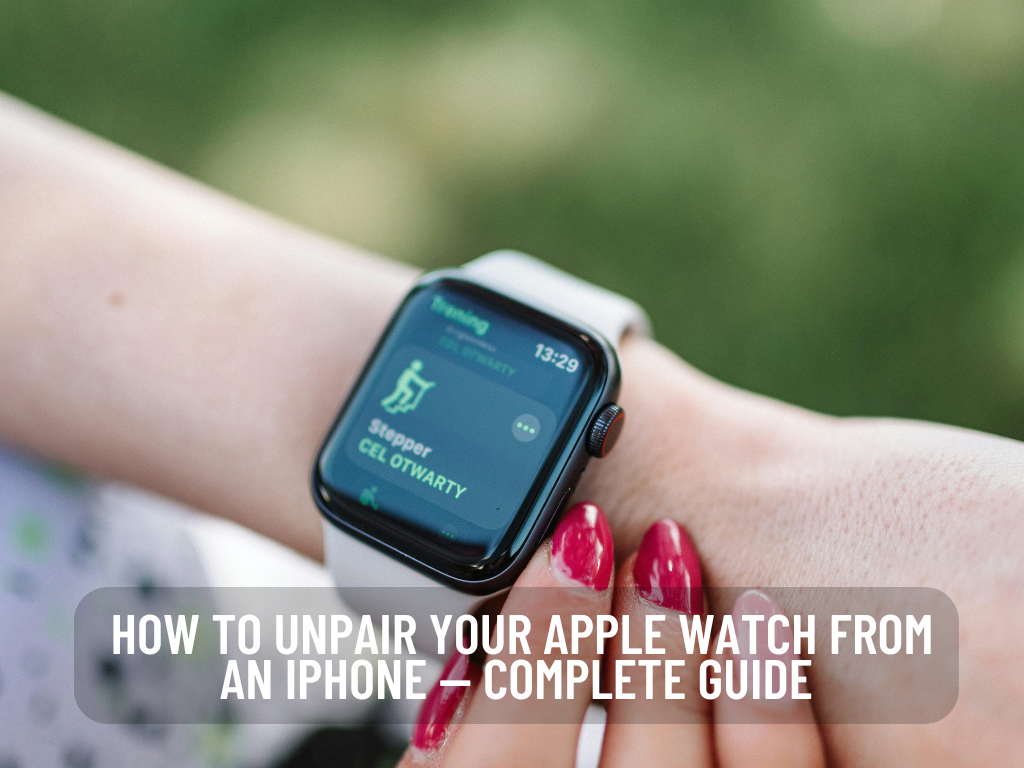
Is your Apple Watch paired with an iPhone — but you want to pair it with a new phone, or reset it before selling? This article walks you through everything you need to know about unpairing your Apple Watch — whether you have access to your iPhone or not.
Table of Contents
- Which iPhone Models Support Apple Watch
- How to Unpair Your Apple Watch From an iPhone (Step-by-Step)
- How to Unpair an Apple Watch Without an iPhone
- Frequently Asked Questions (FAQs)
1. Which iPhone Models Support Apple Watch
Not every iPhone can pair with every Apple Watch. It depends on iPhone model, iOS version, and watchOS version. According to Apple, recent Apple Watch models require relatively recent iPhones. Apple Support+1
Here are general compatibility guidelines (valid as of 2025):
- Apple Watch models like Series 7, Series 8, SE (2nd gen), SE (3rd gen), Ultra, and newer typically require iPhone 8 or later. Apple Support+2Apple Support+2
- For the latest Apple Watch models (Series 9, Series 10, Series 11, Ultra 2/3, etc.), you would need iPhone XS or later. Apple Support+1
Since iPhone 17 is a current-generation iPhone (released in 2025) it will support pairing with all modern Apple Watch models — assuming watchOS version and iPhone’s iOS version are compatible.
If you are upgrading to a new iPhone (like iPhone 17), that makes pairing with most recent Apple Watch models smooth, provided both phone and watch have been updated to compatible OS versions.
RELATED:
- Share location between iPhone and Android
- Why Is My iPhone Storage Full After Deleting Everything? A Detailed Guide
- How to use Dynamic Island iPhone 14
2. How to Unpair Your Apple Watch From an iPhone (Step-by-Step)
If you have your iPhone in hand, unpairing is straightforward. Follow these steps:
- Prepare for Unpairing
- Ensure both your iPhone and Apple Watch have sufficient charge.
- Make sure your iPhone is connected to the internet (Wi-Fi or cellular) for backup and iCloud sync.
- Open the Apple Watch App on iPhone
- Launch the “Apple Watch” app (pre-installed on iPhones).
- Go to the My Watch Tab
- Tap the “My Watch” tab at the bottom to view connected watch(s).
- Select Your Apple Watch
- Tap on the watch you want to unpair from the list of devices.
- Start the Unpairing Process
- Scroll down and tap “Unpair Apple Watch” (or “Erase Apple Watch Content and Settings” — wording may vary slightly).
- Confirm Unpairing
- A confirmation prompt will appear. Read carefully, then confirm.
- Authenticate with Apple ID
- For security, you’ll need to enter your Apple ID password. This ensures you authorize the unpairing.
- Wait for Process to Complete
- The watch will erase all content and settings. A progress wheel will appear on the watch screen. Wait until the process finishes (might take a few minutes).
- Set Up or Pair With Another iPhone
- After unpairing, you’ll see the watch’s setup screen. From here you can either:
- Set it up as a new Apple Watch, or
- Pair it with a different iPhone (e.g. your new iPhone 17).
- After unpairing, you’ll see the watch’s setup screen. From here you can either:
- Optional: Restore From Backup
- If you previously backed up your watch, choose “Restore from Backup” during setup to recover your data and apps.
3. How to Unpair an Apple Watch Without an iPhone
If you don’t have your iPhone — e.g. you lost it, it’s stolen, or you’re giving away the watch — you can erase/unpair directly from the watch itself. Here’s how:
- Ensure Adequate Battery
- Make sure your watch has at least ~50% battery, or better yet, connect it to its charger.
- Open Settings on Apple Watch
- Press the digital crown to access the app screen → tap Settings (gear icon).
- Go to General → Reset
- Scroll down to General, then find Reset.
- Select “Erase All Content and Settings”
- This will unpair the watch from any iPhone and erase all data.
- Confirm the Reset
- Tap Erase All (or similar) and follow the prompts.
- Wait for Erasure to Complete
- A progress wheel will appear. Keep the watch on charger until done.
- Set Up or Pair With a New iPhone
- Once complete, the watch will boot to setup mode. From there, you can treat it as a new watch or pair with a new iPhone.
Important note: Unpairing or erasing directly from the watch will not create a backup. You will lose data unless the watch was previously backed up via iCloud or during a prior pairing.
4. Frequently Asked Questions (FAQs)
Q: Will unpairing my Apple Watch delete all data?
A: Yes — unpairing will erase all content and settings. If you want to keep your data, make sure you have a backup before you unpair.
Q: Can I unpair Apple Watch without iPhone?
A: Yes. Use the watch’s Settings → General → Reset → Erase All Content and Settings.
Q: After unpairing, can I pair the watch with another iPhone?
A: Definitely. Once erased/unpaired, the watch is ready to pair as new with any compatible iPhone (e.g. iPhone 17).
Q: Do I need to unpair before selling or giving away my Apple Watch?
A: Yes — unpairing removes your personal data and disconnects the watch from your iCloud account, which protects your privacy.
Q: How long does unpairing take?
A: Usually a few minutes. The watch will erase data and reboot, so don’t disconnect it during the process.
Q: What happens if I unpair by mistake?
A: You can re-pair the watch to the same iPhone or a new one — but all data will be lost unless you restore from a backup.
Q: Is my iPhone 17 compatible with all Apple Watch models?
A: Yes. iPhone 17 — being a modern iPhone — is compatible with recent Apple Watch models, as long as the watchOS and iOS versions match Apple’s compatibility requirements.